Application Server
Application Server
Overview
The server application discussed in this section is the beating heart of the MFGStream ecosystem. It executes scripts, facilitates terminal functions, execute BPA functions, and so on. Client terminals can be accessed, observed, and managed from the server application.
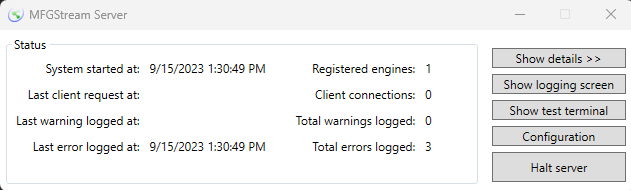
Launching the server will first validate the subscriptions previously configured with the Configuration Tool before loading the above “simple server” display. This view can be expanded with the Details button on the right-hand side to display the below “detail server” display.

The configucation tool can also be launched from the server application using the Configuration button on the right-hand side of the server display.
Server Detail View
The server detail view provides system administrators with a snapshot of MFGStream system usage and overall health. Here we’ll discuss the major components of this view and how to interpret them.
Server Status
Server status provides insight into basic server statistics such as, when the last error and/or warning was logged and the number of current client connections.
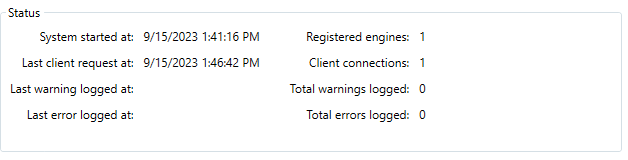
System Started At: Date and time when the server was last launched.
Last Client Request At: Date and time when the server last received a request from a terminal or device.
Last Warning Logged At: Date and time when the server last logged a system warning.
Last Error Logged At: Date and time when the server last logged a system/script error.
Registered Engines: Number of MFGStream script or VisiBar script engines registered with the server.
Client Connecetions: Number of client devices and terminals currently connected to the server.
Total Warnings Logged: Total number of warnings logged since the system start date.
Total Errors Logged: Total number of errors logged since the system start date.
Sessions View
The session view displays a list of active user sessions along with a the status of each terminal. BPA executions appear in the session list as well and have an auto-generated terminal id.

Session View Columns
Session:
Terminal ID: Unique identifier of the terminal. The terminal id is configured in the customer portal when adding a terminal/device to a selected subscription. Additionally, the terminal id in the customer portal must match the id configured within a given web client instance.
Function: Current function being executed on the terminal.
Step: This column displays messages passed in by the script when the MFGS.Session.SetState([location], [comment]) function is called.
Seq (sequence): Line number being executed within the active script.
Date/Time: Date and time the server last received a command from a the terminal.
Comments: Displays a comment value passed into the MFGS.Session.SetState([location], [comment]) function within scripts.
Delay: This column is used by the VisiBar script engine and is not applicable to the WWScriptEngine.
Processor: Script engine executing commands sent from the client terminal.
Script Engines
In MFGStream, scripts are controlled and executed by script “engines”. These engines start when MFGStream is started and stop when the server application closes. You can view the status and type of engine in the Script Engines grid in the MFGStream sever details.

Script Engine Columns
Type: Script engine type: WWScriptEngine (Win Wrap script engine), controls scripts written for MFGStream. VBScriptEngine (VisiBar script engine), executes legacy VisiBar scripts.
Name: Engine name entered in the configuration tool -> features -> feature id field.
Last Accessed: Last date and time any code was executed on a given script engine.
Test Terminal
The test terminal provides users with an entry point into the installed scripts for testing and debugging purposes.
UI Elements
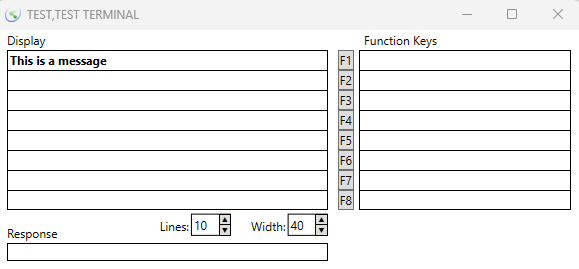
Display: The display section of the test terminal provides user feedback from the script in the same way that a standard terminal/device does.
Function Keys: Simulates function key inputs.
Response: Use this field to provide input responses to script prompts.
Lines: Number of vertical lines displayed in the test terminal.
Width: Width, in characters, of the terminal lines.
MFGStream Log
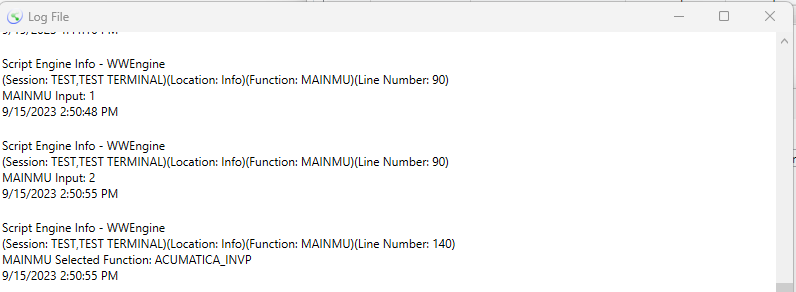
MFGStream provides system administrators access to sytem logs directly from the server application screen by clicking the Show Logging Screen button. This will display the default system log file as defined in the configuration tool -> logging settings. In addition to system events, this default log will capture logging messages sent by scripts using the MFGS.Log.[info|warning|error].([message]) function.
Stopping the Server
MFGStream servers run perpentually, that is, until they’re stopped either by an administrator or by a system restart. To stop the MFGStream server, click the Halt Server button on the server application screen.
Session Detail View
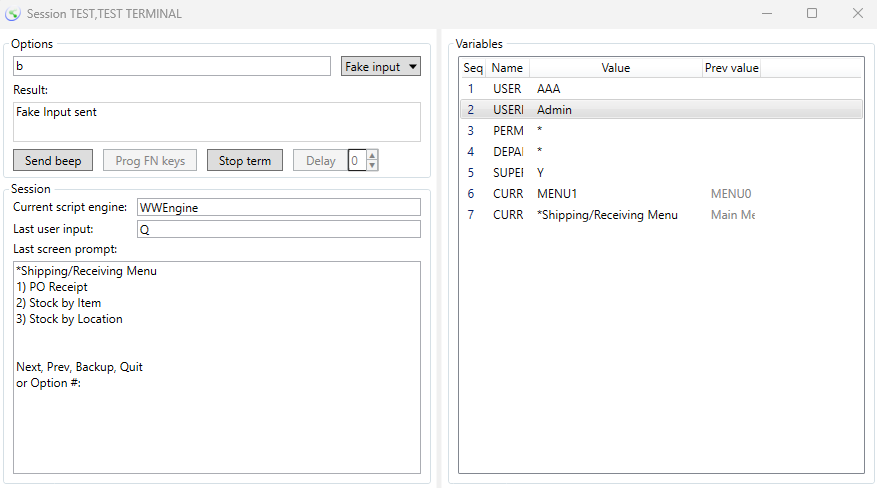
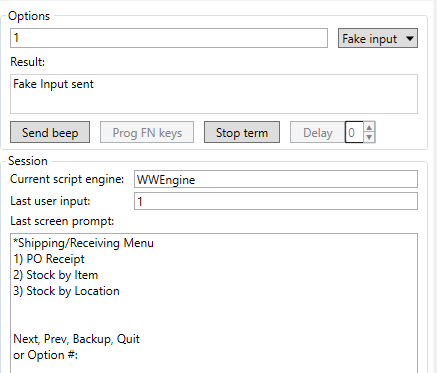
The session detail view allows system administrators to manage MFGStream terminals and devices from the server application. This detail view provides insights into the status of a selected terminal and includes informtaion regarding the last screen prompt the user received, the current variables assigned to the session, and the last user input. Administrators can interact with terminals by sending messages to the terminal, sending a system beep, or stopping the terminal.
UI Elements
Options: Interface options for interacting with the selected terminal session.

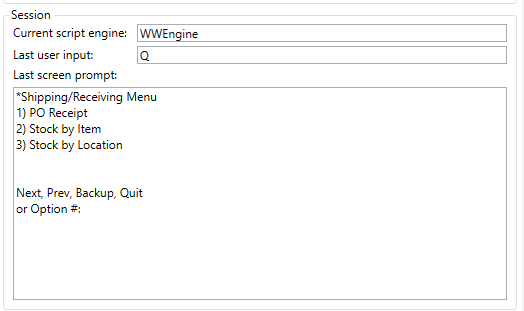
Session: The session section of the session detail view provides insight into the the executing script engine, last user input entered into the terminal and the last screen prompt displayed to the user.
Variables: Displays session level variable values. These variables are set by the executing script using the MFGS.Variables object.

Sending a Message to the Terminal:
Sending a message to the terminal will reuslt in said message being display on the terminal as a prompt to the user.
1. Enter the messasge into the message input field.
2. Select “Send msg” in the option type dropdown to the right of the input field.
3. Press enter or click the “Send msg” dropdown button.
Faking Terminal Input:
“Faking” user input from the server allows system administrators to diagnose issues with a given terminal directly from the server without having to have the terminal or device in front of them. In the example below, we will enter a “1” to select the Shipping and Receiving menu option on the terminal. We can see the terminal prompt in the “Last screen prompt” window in the session detail view.
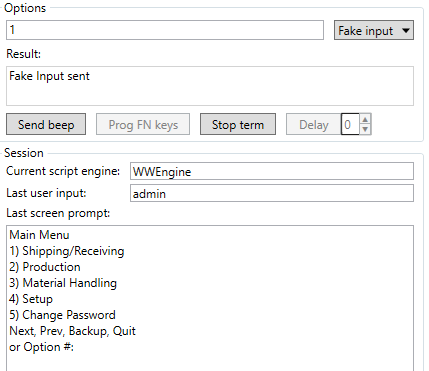
1. Select the “Fake input” option from the option type dropdown to the right of the input field.
2. Enter the command into the input field.
3. Click the “Fake input” button to the right of the input field.
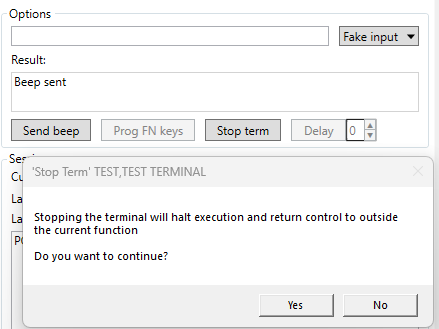
Stopping a Terminal Function
The “Stop Terminal” button allows system administrators to kill the currently executing script function on the selected terminal and returns program control to the previous function. This option can be used to terminate a long running process, a hung process, or even an infinte loop.