Configuration Tool
Configuration Tool
Overview
The MFGStream configuration tool allows users to control everything from general settings like the server local address to environment variables and scheduled events.
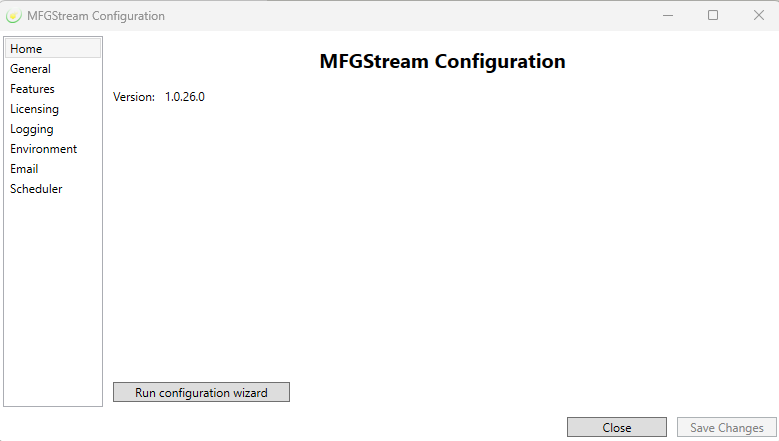
On the above Configuration Tool you will find the currently installed MFGStream application, access to the configuration wizard, and a settings navigation menu on the left side.
MFGStream General Settings
The General Settings window allows users to control the address/ip and port for the server itself. You will also find entries for the MFGStream database connection string, the default location for script code, and a standard function to execution on load.

General Setting Fields:
Address: Enter the IP address and port of the local host the MFGstream server is installed on. This is the address web clients/terminals will use to connect to said server.
Connection String: SQL server connection string for the SQL server instance containing the MFGStream database.
Code Folder: Defines the default location where VB scripts will be stored and loaded from. The default location for this is [MFGStream Install Location]\Code
Default Function: Name of a default function to execute on script load. If left blank, the server default value of MAINMU will be used.
MFGStream Maco-Features
Macro-Features refers to the core components of any MFGStream installation. The items in this section are responsible for executing script and business logic deployed to your MFGStream environment.
Available Features:
- MFGStream Router, this feature is natively installed with MFGStream and cannot be removed.
- WinWrap Script Engine: Execution engine for MFGStream .bas scripts.
- BPA Watcher Server: Business Process Automation execution server.
- VisiBar Script Engine: Script execution engine for legacy VisiBar scripts.
- VisiBar VBTCP Bridge: Enable this feature to allow legacy visiBar terminals to connect to your MFGStream environments.
Adding a Feature
1: Click the + button above the installed feature list, this will launch teh Available Features dialog. The Available Features window will list all available features which are not already installed.
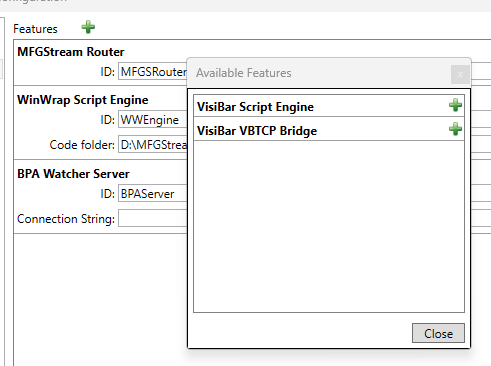
NOTE: Only one instance of each feature may be installed on a single MFGStream environment.
2: Select the green ”+” symbol to the right of the desired feature. This will add it to the installed feature list.
3: Once installed, the new feature will had a default feature id entered in the ID field; there is no need to change this value..
Removing a Feature
1: To remove a feature from your MFGStream environment, simply click the red “x” icon on the right-hand side of the selected feature, this will disable and remove said feature.
Licensing
License settings allows users to specify which MFGStream licenses apply to which MFGstream installations/servers.
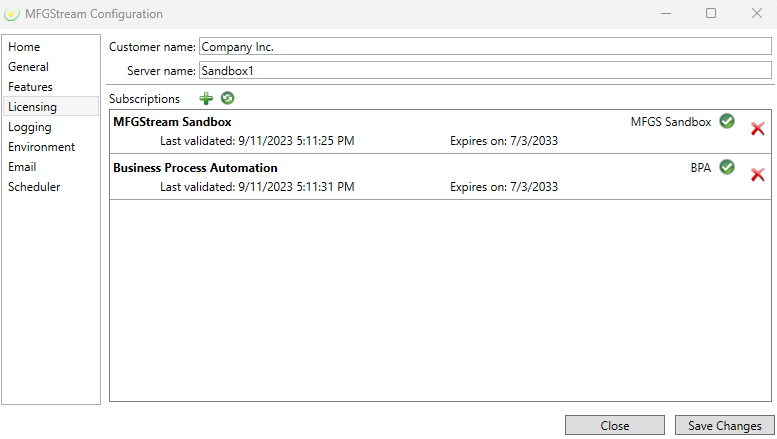
Subscription Fields:
Customer Name: Customer name, usually the company name to which the subscriptions belong as this value is used in the subcription validation process.
Server Name: This should be a descriptive name for the MFGStream installation.
Adding a Subscription
1: Click the + button above the subscription list in the Licensing screen of the configuration tool, this will open the New Subscription dialog.
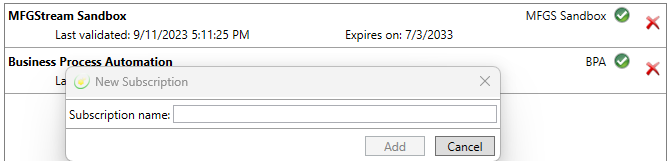
2: Enter the name of the desired subscription, this can be found in the customer portal main subscription list screen.
3: After entering the subscription name, click the add buttion. This will trigger MFGStream to validate the subscription. If successful, the New Subcription window will close automatically and you will see the new subscription displayed.
Validate Subscriptions
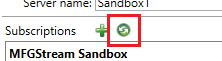
You can validate the status of your subscriptions at any time by using the Validate Subscriptions button on the configuration tool license screen.
Logging
Logging is pretty straightforward in MFGStream. The MFGStream environment has a default logging file defined in the configuration tool logging screen. This default logging location can be changed or, alternatively, independent logging can be implemented in your MFGStream script files.

Writing to this default log file from MFGStream scripts is accomplied through the use of the MFGS.Log.[level]() function.
EX: MFGS.Log.Error(“This is an error message.“)
Environment Variables
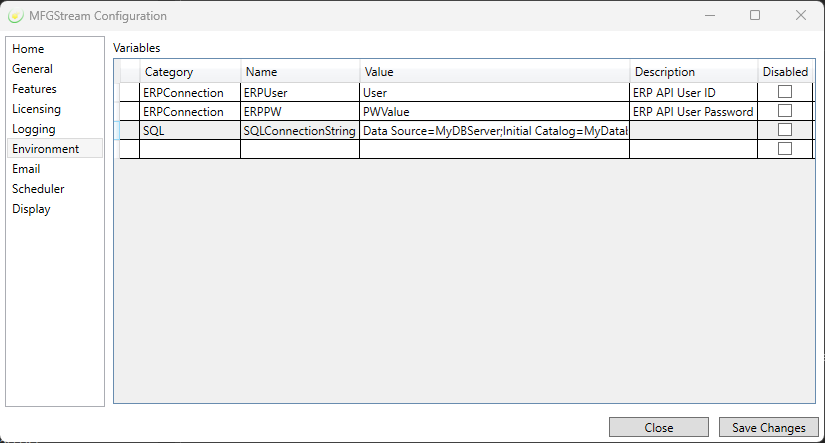
MFGstream provides users with the ability to set variables at the environment level which are then accessible across terminal sessions and persist between server restarts.
Adding a New Variable
1: Select the first column in the first blank row of the Variables grid and enter a unique name for the variable.
2: Press the TAB key or select the value column.
3: Enter a value for the vairable in the value (second from the left) column.
4: Click the Save Changes button on the bottom right of the Configuration Tool screen.
Removing a Variable
tbd…
SMTP Settings
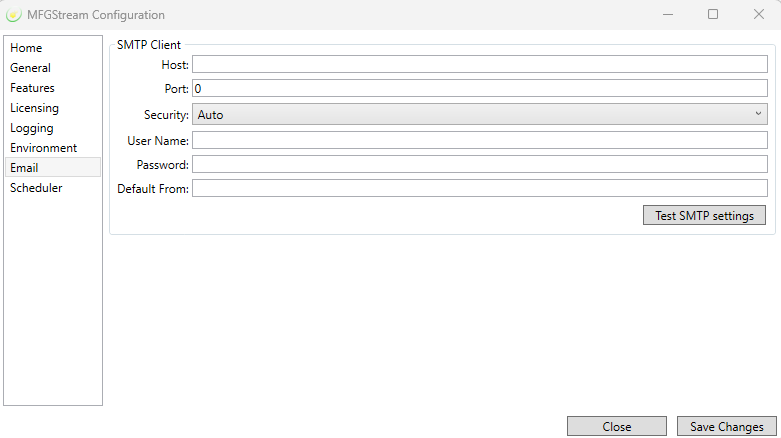
Using the built in SMTP client it is possible to send email notifications from MFGStream scripts. These notifications are wholly customizable and can be triggered by script events such as a user prompt for data, completing a purchase order receipt, and so on. Notification emails sent from MFGStream scrips can be configured to use different “from” emails in each message however, if none is specified then the system default will be used.
SMTP Fields:
Host: SMTP host name or IP Address.
Port: Open communications port on the SMTP host.
Security: Connection secutity metnod.
Security Modes:
- None: No connection security is forced.
- Auto: System default security method is used.
- SSL: Force SSL connection with the SMTP host.
- Start TLS: Force TLS communication with the SMTP server.
- Start TLS When Available: Allows the client and server to negotiate the highest level of supported security.
User Name: SMTP account username. This accunt will be used to send all notifications from MFGStream via SMTP.
Password: SMTP account password.
Default From: This is the default “from” email that will be listed in all emails sent from MFGStream that do not explicitly define a from email. Ex: MFGStream@company.com
System Scheduler
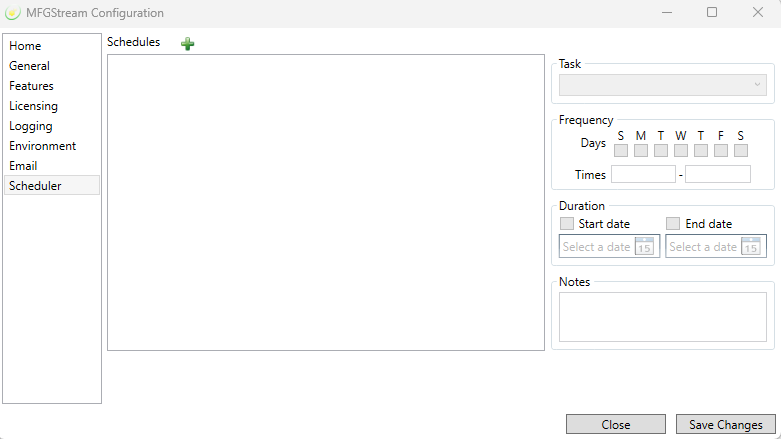
The System Scheduler (or just Scheduler) allows MFGStream administrators to schedule sytem down time for maintenance or to lock clients and BPA out for specified [recurring] period(s).
Scheduling Downtime
1: Click the green + icon above the Schedules list to add a new schedule instance.
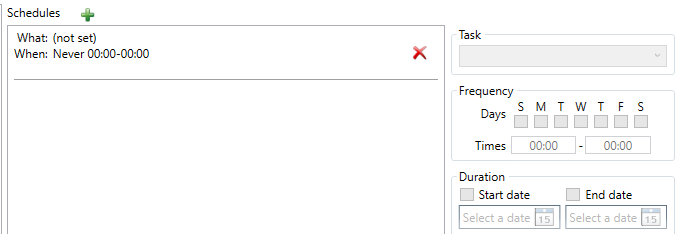
2: Select a task type from the task dropdown menu.
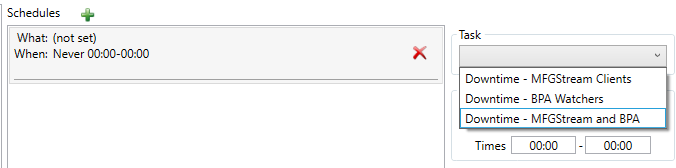
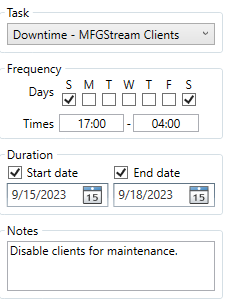
3: Select the days which the scheduled event should be in effect.
4: Set a start and end time for the scheduled event.
5: Optional: Select a start and end date to define a specific time-span for the event to occur within.
Example: In the sample below we have configured an event to lockout user clients for Saturday and Sunday starting at 5:00 PM Saturday and ending at 4:00 AM on Sunday morning.
6: Save the schedule. At this point MFGStream will validate the schedule and report potential errors.