Web Terminal/Client
Overview
MFGStream allows devices and users to connect via a simple web client interface. This interface requires Microsoft Internet Information Services (IIS) to be configures to host the client web application that is installed with the MFGStream application server.
The MFGStream web client uses the WebSocket protocol which is not typically included with most default IIS installations. If the WebSocket protocol is not installed, or if you are unsure, please follow the appropriate IIS installation instructions below.
Internet Information Services (IIS) Installation
Installing IIS on Windows Server
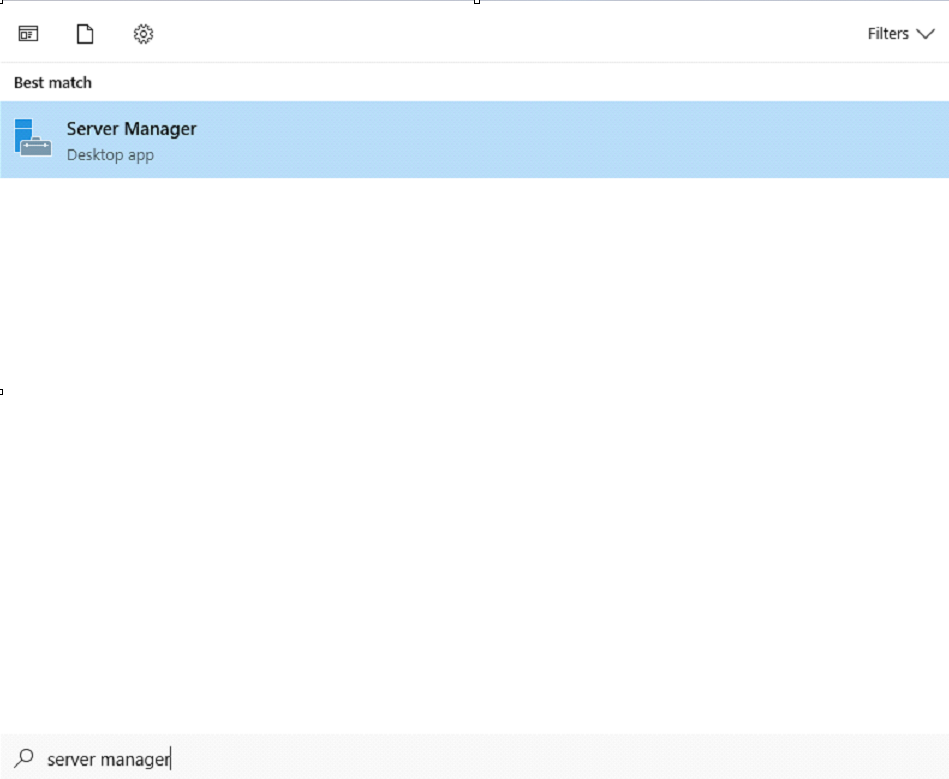
Open the Windows Start menu, type server manager into the search box, and select Server Manager from the list of options.
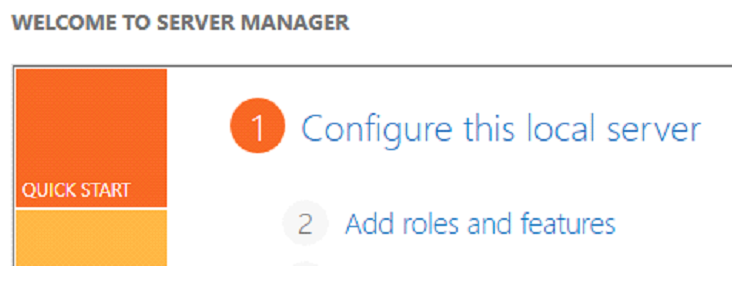
Under “Configure this local server” click “Add roles and features” to launch the “Add Roles and Features Wizard”.
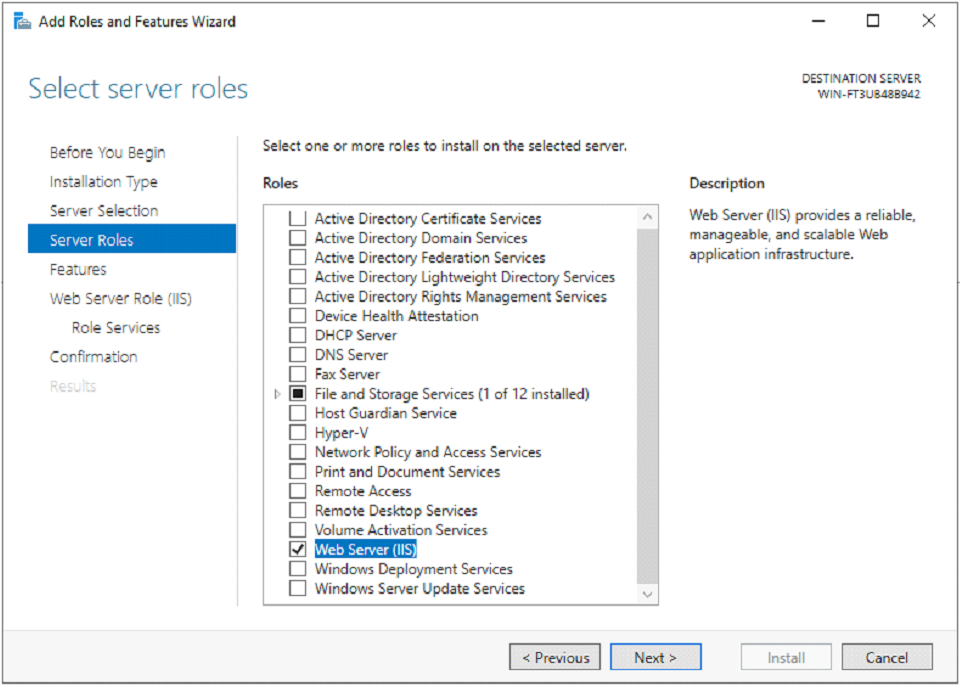
Follow the wizard prompts, selecting “Role-based or feature-based installation” for the Installation Type, the local or remote server IIS will be running on for the Server Selection, and then check the box next to “Web Server (IIS)"" under Server Roles.
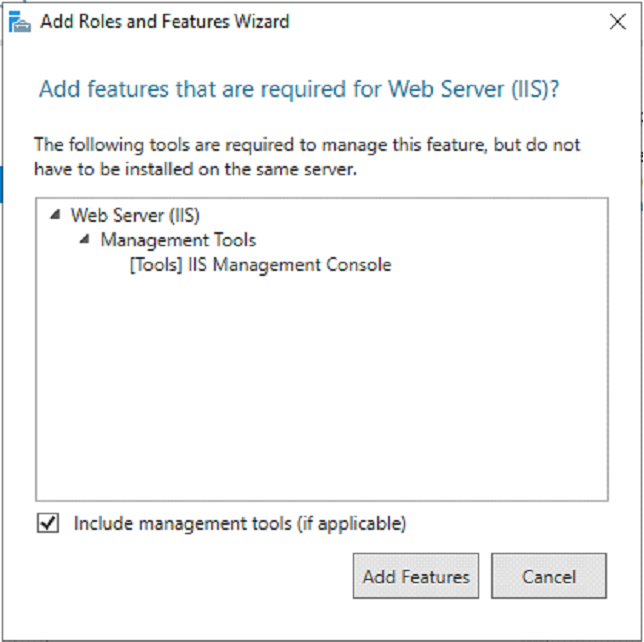
A popup box will appear asking to add the Management Tools feature required by IIS. Click Add Features to continue.
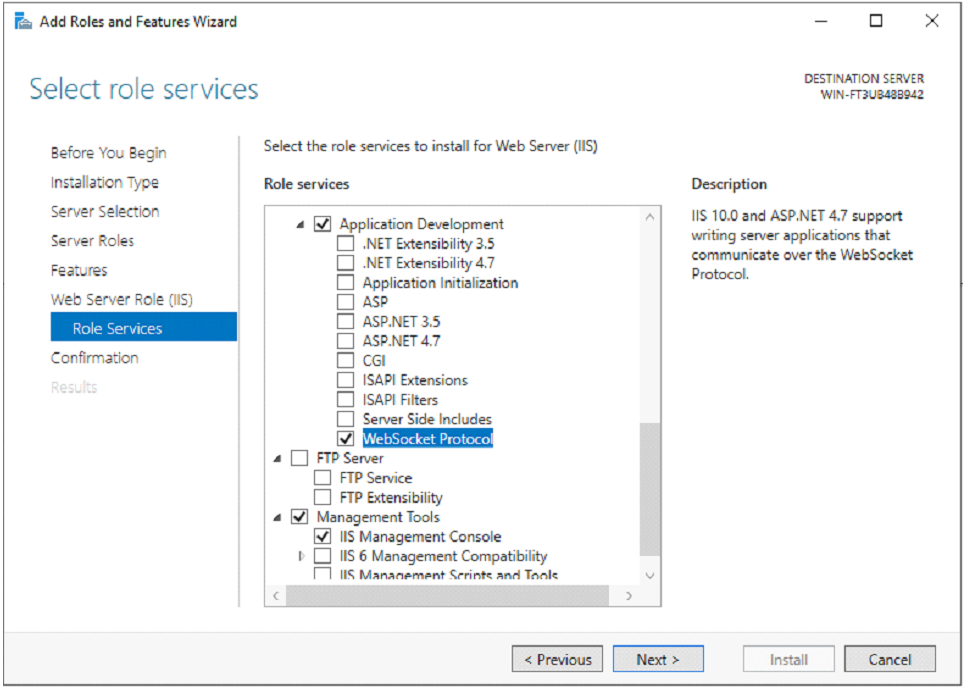
Click Next until the Role Services screen is displayed. Scroll down the list to the “Application Development” section and check the box next to “WebSocket Protocol”. Click Next and then Install. Once IIS has installed click Close.
Installing IIS on Windows 10
Open the Windows Start menu, type “windows features” into the search box, and select “Turn Windows features on or off” from the list of options.

Check the box next to “Internet Information Services”. Click the plus sign next to “Internet Information Services” to expand the node, then “World Wide Web Services”, then “Application Development Features”, and then check the box next to “WebSocket Protocol”. Click OK to install IIS.

Configure MFGStream Web Client Application
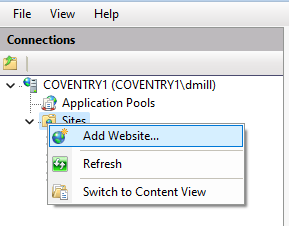
After installing Microsoft Internet Information Services the client appliation for MFGStream needs to be configured. To do this, start by opening the IIS application from the Windows start window. Once open, right-click on the “sites” folder in the left-hand treeview and select “add website…“.
The “Add Website” dialog should be displaying… Enter a name for the site, for example, MFGStreamClientApp.
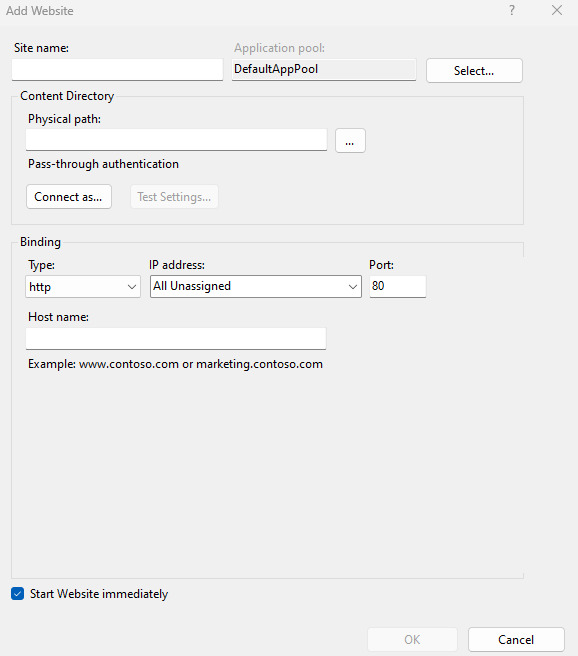
Next, set the physical path for the MFGStream client application. The default location is: “C:\Program Files (x86)\MFGStream\WebClient”.
Finally, set the binding type and port. Default settings for HTTP are suffcient for standing up the web client site. Check the “Start Website immediately” checkbox, if it is not already, then press the OK button.

The web client application is now running and ready for connections.
Test the Web Client
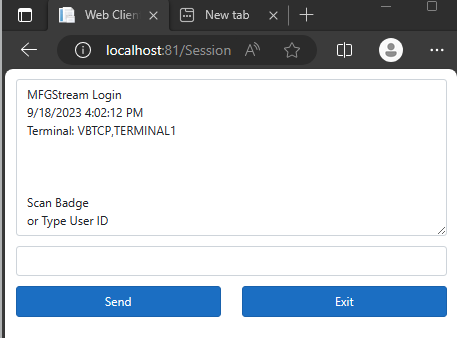
To test the connection to the web client application we need to launch a web browser and navigate to the ip address and port (or appropriate URL) of the web server the website is configured on; we’ll use localhost in this example.
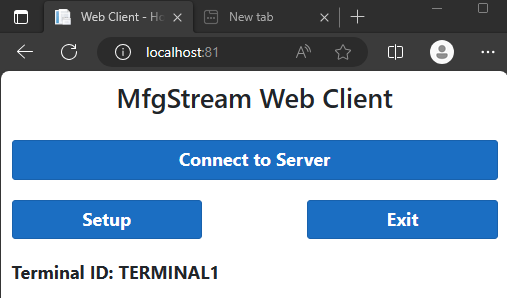
If the website is configured correctly then you should see the above website.
Terminal Configuration
Before begining local terminal configuration, check that the terminal has been configured in the customer portal - you will need the terminal/device id from the portal to successfully configure the terminal client. Once the terminal has been added to the customer portal and desired subscription, it can be configured locally prior to use.
Configuring the Test Terminal
To configure a test terminal on a given server, please see the Servers and Devices section of the customer portal manual. When registering the test terminal, select the “Test” option in the device type field. No other local configuration is required.
Configuring Local Terminals
To configure a local web client, launch a web browser and navigate to the server address and port of the MFGStream website configured in the Configure MFGStream Web Client Application section of this manual. The web client home screen should display at this point:
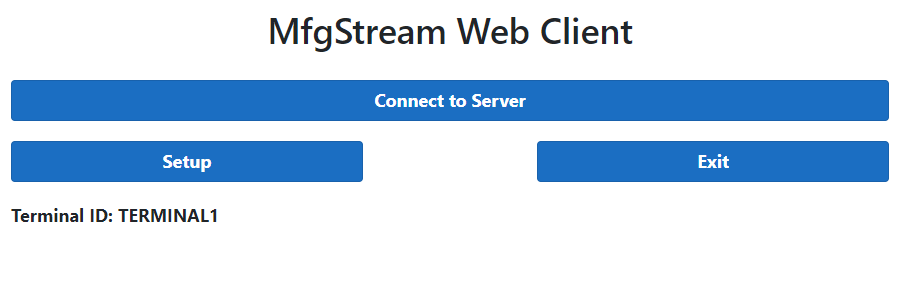
Next, select the “setup” option on the client home screen, this will take you to the client setup page:
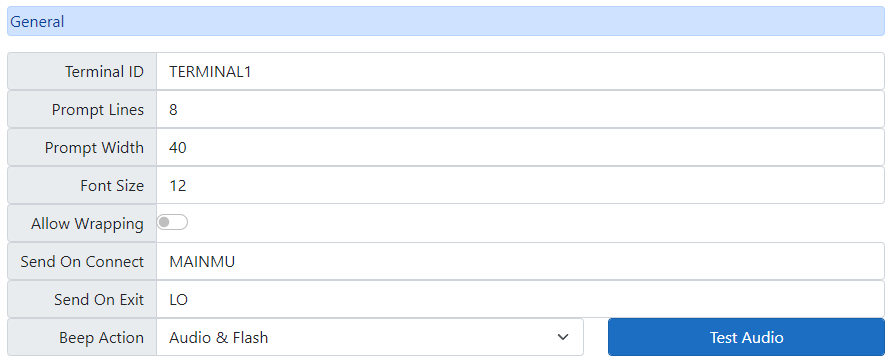
In the general section of the setup page enter the terminal id that was added to the customer portal for the current server. The default values for prompt lines and width are set to work with majority of handheld devices however, you can configure these to suit your needs though, more often than not, 8 lines and 40 character width is generally sufficient.
Other Settings
Font Size: Font size for all text displayed on the terminal. Default value: 12
Allow Wrapping: Allow/disallow text wrapping. Disabled by default.
Send on Connect: This is the command that is sent by the terminal when it connects to the server. Typically this is the name of a function entrypoint to your initial scripts. The default value is MAINMU (main menu). Usually there is no need to change this unless you have multiple entry script entry points spread across multiple terminals.
Send on Exit: Similar to “Send on Connect”, this is the function/script exit point which is called by the client as it disconnects from the server. This can be a function that specifically closes a DB connection on terminal disconnect for example.
Beep Action: Defines which action should be taken when the server sends a beep to the terminal.
Configuring Function Keys
Function keys “F1, F2, …, F8” can be used to send complex commands with a single button press.
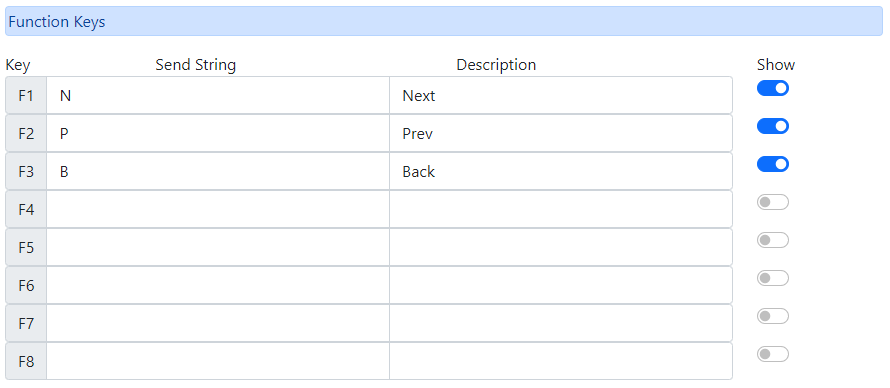
Function keys can be configured with custom commands by setting the “send string” column with an input command that is sent to the server when the function key is pressed. To provide context to the user, enter a user friendly description in the description column and toggle the show switch on the right-hand side of the row. The show toggle will either hide or display the fucntion key name and description to the user on the terminal screen in the form of buttons below the display.
Arrow Key Functions
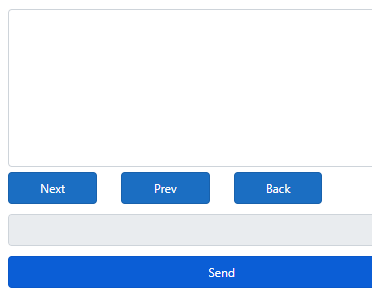
Similar to function keys, arrow keys can be configured to send specific commands to the server when pressed:

In the example below the arrow keys have been configured to send the following commands: “P” (Previous row/option), “N” (Next row/option), “B” (Back to previous menu), and “Q” (Quit current function).

NOTE: Commands configured for the function/arrow keys must be relevant to the scripts being executing. The above commands are examples only.
Camera Settings
To enable a terminal webcamera, simply toggle the “camera” switch at the bottom of the terminal setup page.

Once all settings have been configured in the terminal settings page, click save and close to return to the home screen. The terminal is now ready to connect to the MFGStream server.