Script Designer
Overview
The MFGStream Designer application is a self-contained development environment for developing and debugging MFGStream scripts. with the script designer tool you can create self-contained procedural scripts, object-oriented script structures and so on.
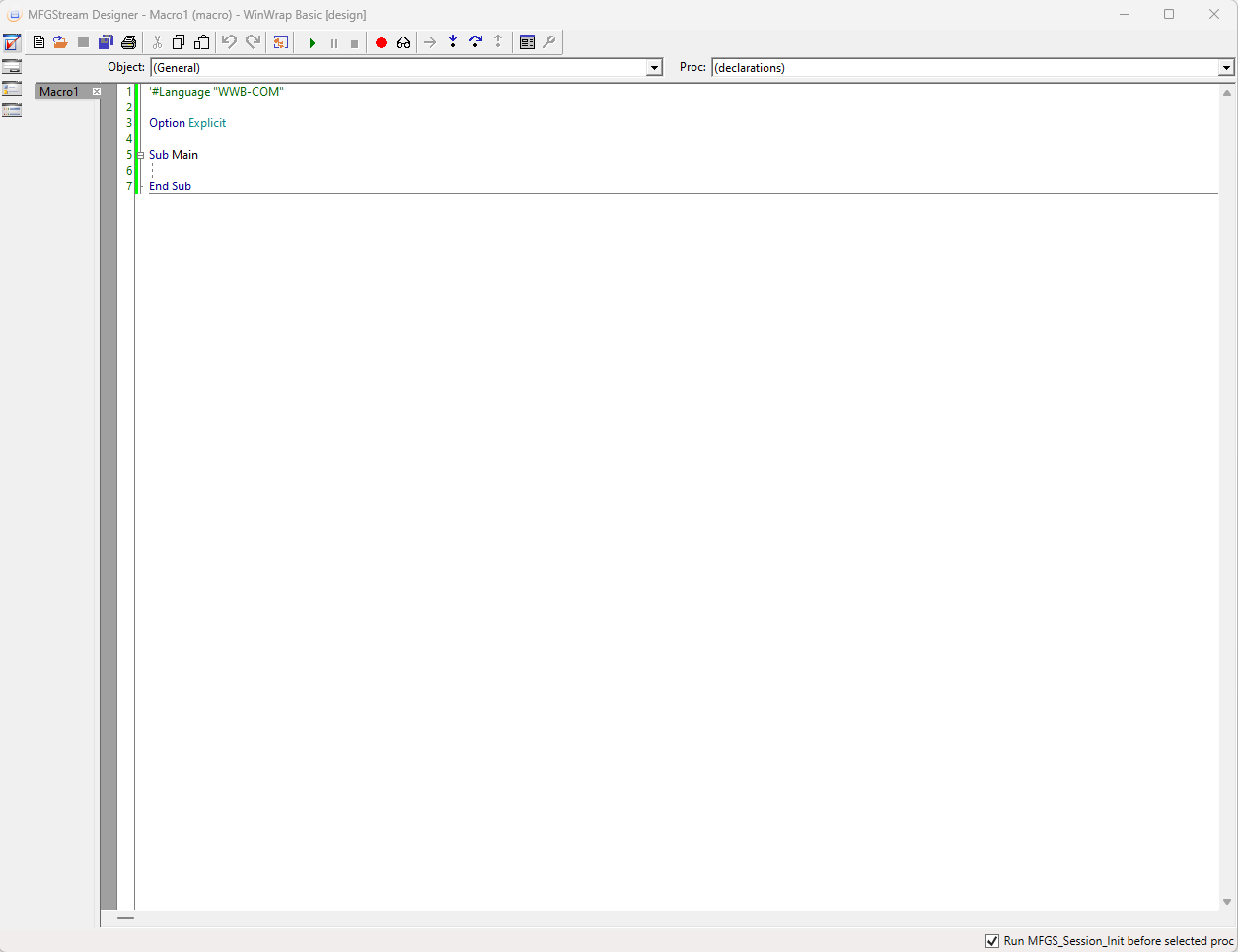
General UI Elements
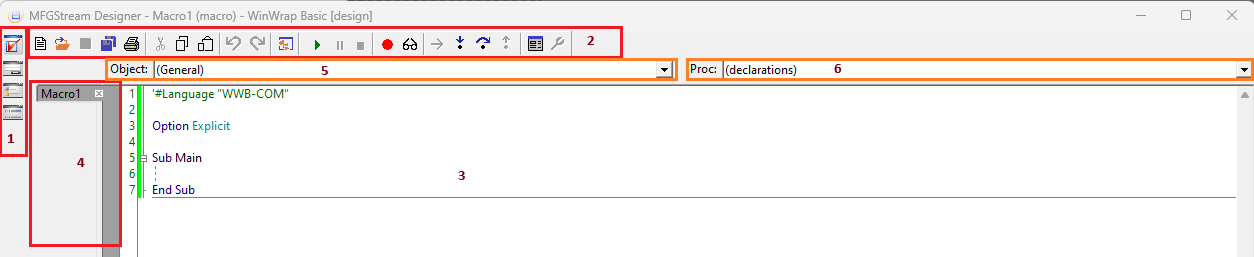
- 1. Session/Debug Toolbar: From top to bottom: Check Syntax tool, Show Debug Session, Show Logging Screen, Show Session Variables.
- 2. Main Toolbar
- 3. Text/Code Editor
- 4. Open File list: Displays a list of files currently open in the designer. By default, the designer will attempt to open all files in the MFGStream code folder.
- 5. Class/Object list of the currently selected file.
- 6. Process/Function list. This field works in conjunction with the selected object in the object list. For example, selecting a new class in the object list will update the proc list with a list of available processes/functions such as class_initialize and class_terminate. Selecting a process in the proc dropdown will add a function stub to the class, if it doesn’t already exist.
Session/Debug Tools
Check Syntax: The syntax checker will assess all open files for improper VBA syntax. Syntax errors will be highlighted in red text with a description being provided at the bottom of the designer window.
Show Session: The show session tool displays a simulated MFGStream terminal that allows script designers to view terminal prompts in a real-world setting as well as test function input and results.
Show Log: Displays a debug log for the current debug session. This log will display system/debug errors as well as anything logged using the MFGS.Log object within scripts.
Debugger Variables: Displays a list of session variables for the current debug session. These are set and retrieved within scripts using the MFGS.Variables object.
In MFGStream, scripts are witten using Microsoft’s VBA language and executed via the internal script engine. Using VBA means that it is possible to use, or write, external VBA code modules in your MFGstream scripts. In addition to standard VBA features, MFGStream incorporates multiple libraries of useful extention features for use with various ERP systems, label system, cameras, and so on.
Adding References to your Scripts
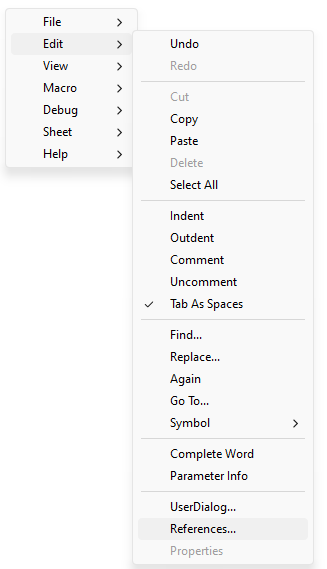
External references can be added to your MFGStream scripts using the “add reference tool”. This tool can be accessed through the designer context-menu by right-clicking anywhere in the designer and selecting the Edit menu, near the bottom you will find an entry for references.
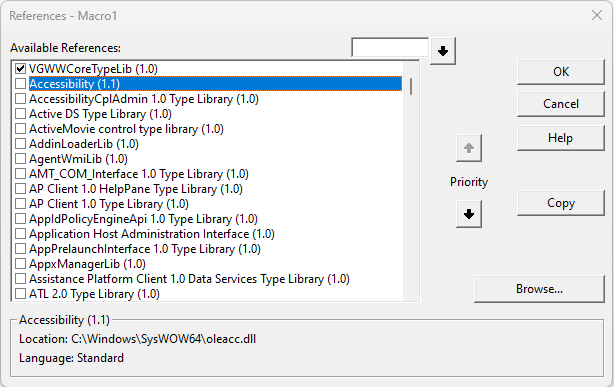
The add references dialog allows you to select from a wide reange of available COM components provided by Windows.
Debugging
The MFGStream Designer features real-time debugging for easy script development and testing. Breakpoints can be set by selecting a line within the vertical grey bar on the far left side of the code editor.
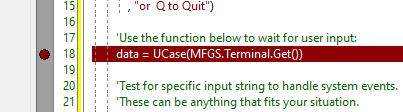
At the top of the Designer application you will find a set of debug tools.
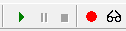
From Left to Right: Start Debug, Pause, Stop Debug.
From Left to Right: Show Next Statement, Step Into/Next Statement, Step Over, Step Out