Customer Portal
Customer Portal
Overview
The MFGStream Customer Portal serves as a web-based subscription management tool. From here, users can manage subscriptions, add/remove devices and terminals, create schedules, manage email triggers, and file/directory watch settings.
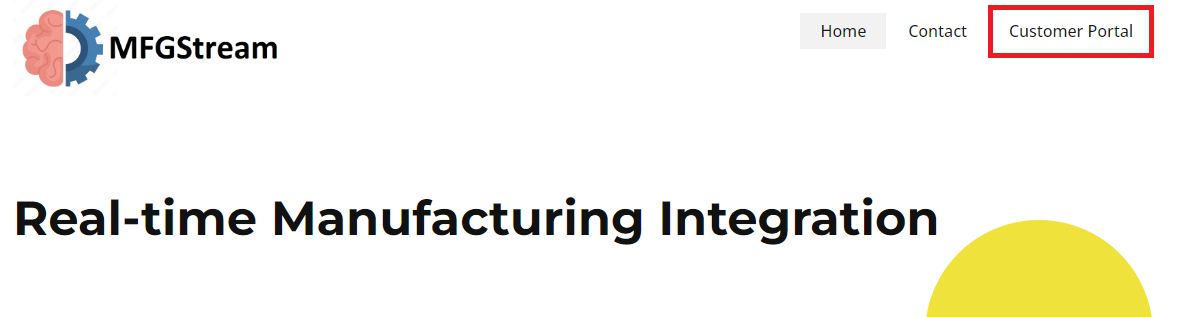
Logging Into the MFGStream Customer Portal:
Logging into the MFGStream customer portal requires a username and password, contact your sytem administrator for these otherwise, you may request customer service at CustomerService@mfgstream.com.
Subscription Management
When you log into the MFGStream customer portal you will initially be greeted with a list of subscriptions and their current status:
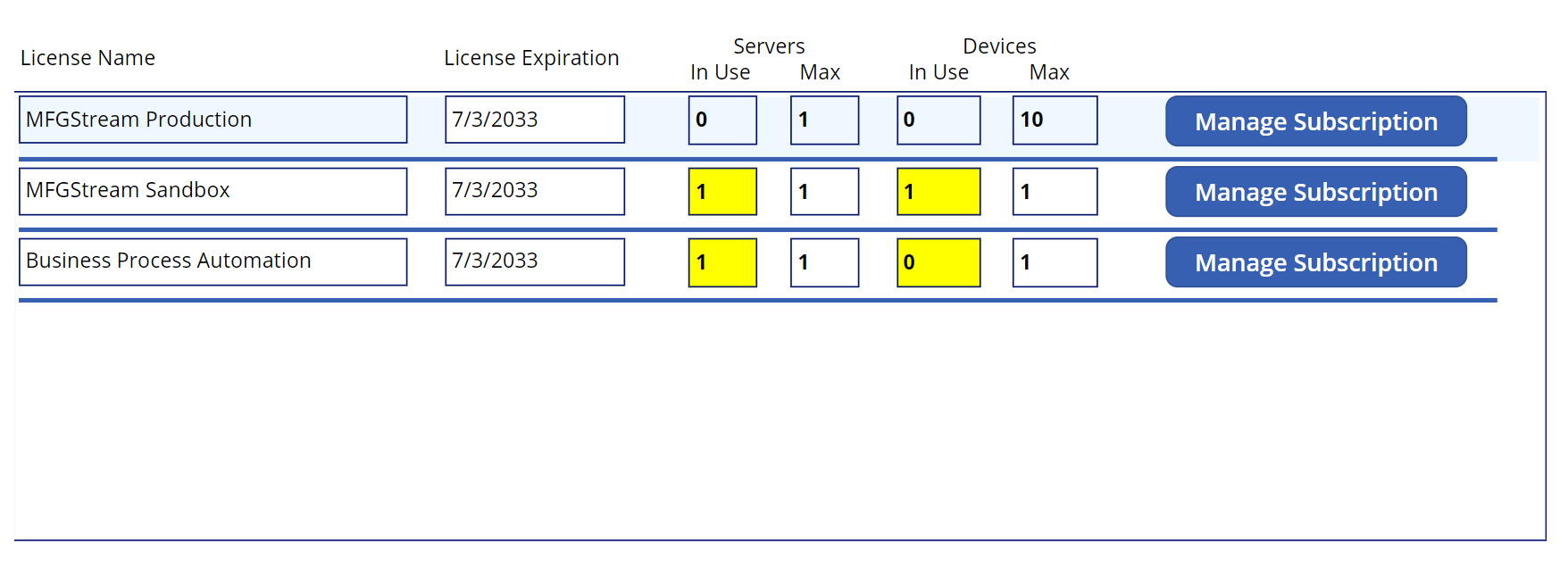
Subscription Fields:
License Name: The license name for each subscription should clearly define it’s context. In the example above each MFGStream license clearly defines production and sandbox contexts.
License Expiration: This field defines when your license(s) are to expire.
Servers: In Use: Defines the current number of MFGStream servers that have been installed and registered with a given subscription.
Servers: Max: Defines the maximum number of servers allowed under a given subscription.
Devices: In Use: Defines the current number of devices and terminals registered to a given subscription.
Devices: Max: Defines the maximum number of devices and terminals that a subscription is allowed to have registered.
Manage Subscription: Opens the Server/Devices management window for MFGStream subscriptions and opens the BPA management window for business process automation subscriptions.
Servers and Devices
MFGStream subscriptions are comprised of two main components: servers and terminals. A server consists of the stand-alone MFGStream application which is installed on a pc or cloud instance whereas terminals are separate user-driven data collection points distributed throughout your business. Terminals can consist of hand-held barcode scanning guns, pc stations, or other devices with access to an MFGStream server installation.
Registering A Server
1: Click the + button above the server list, this will present the “add server” dialog.

2: Type the server name into the “New Server Name” field.

3: Finally, select the “Add” button to finish adding the server to the subscription.
Registering A Terminal
1: Select a server in the server list to highlight it and display a list of devices.
2: Click the + button above the device list, this will present the “add device” dialog.

3: Select a device type and enter a name for the device
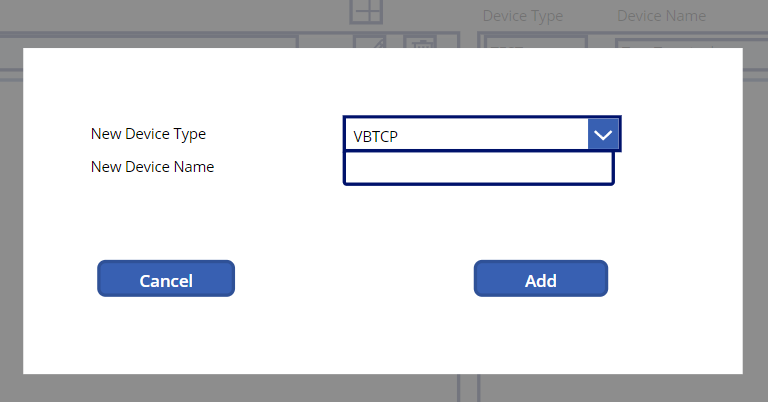
4: Finally, select the “Add” button to finish adding the device to the subscription.
Business Process Automation Subcription Management
Business Process Automation with MFGStream can take many forms and supports multiple trigger types such as: File Watch, File Line, Interval, Email, HTTP Requests.
BPA Events:
File: Watches for file events within a specified directory and according to a specified file type/name filter to trigger a specified script.
Line: Watches for line additions, according to a selected line delimiter, to a specified file to trigger a secified script.
Interval: Defines a recurring interval used to trigger a specified script. This event type can also be used to trigger a script at a specific time.
Email: Sends emails based on triggering event.
HTTP: Defines the current number of devices and terminals registered to a given subscription.
File Events
File events can be used to trigger scripts when a file in a specified directory is added, deleted, Renamed, or otherwise changed.
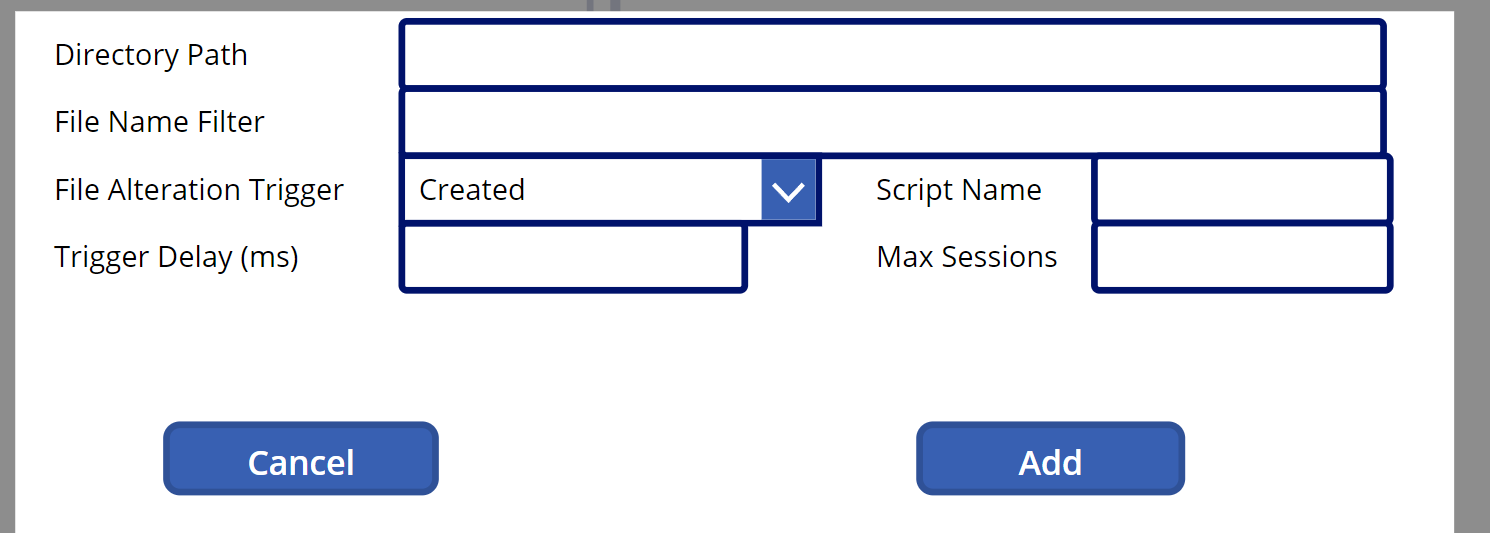
Directory Path: Full path to file source directory.
File Name Filter: File name patter to search for within the specified directory.
Search for any file with the extensions .txt or .xml: *.txt | *.xml
Search for any filename with any extension: *.*
Search for files starting with ‘orders’: orders*.txt
File Alteration Trigger: Trigger the selected script when a matching file is found that has undergone a change matching the selected trigger.
Script Name: Specifies the function/sub-routine to be executed when a matching file and trigger is found in the source directory.
Trigger Delay: Delay in milliseconds between a when a file is identified and the script is triggered.
Max Sessions: Defines the maximum number of sessions allowed. A session in this context represents an instance of the selected script running.
File-Line Events
File Line Events can be used to trigger scripts when a new line is added to a specified file.

Directory Path: Full path to file source directory.
File Name Filter: File name patter to search for within the specified directory.
Line Delimiter: Determines the end-of-line delimiter to search for within the identified file. Valid options are: CRLF (Carraige Return, Line Feed), CR (Carraige Return), and LF (Line Feed).
Script Name: Specifies the function/sub-routine to be executed when a matching file and trigger is found in the source directory.
Trigger Delay: Delay in milliseconds between a when a file is identified and the script is triggered.
Max Sessions: Defines the maximum number of sessions allowed. A session in this context represents an instance of the selected script running.
Interval Events
Interval events are used to trigger MFGStream scripts on regular intervals. These events can also be used to trigger a script once or recurring from a specified start date and time to end date and time.
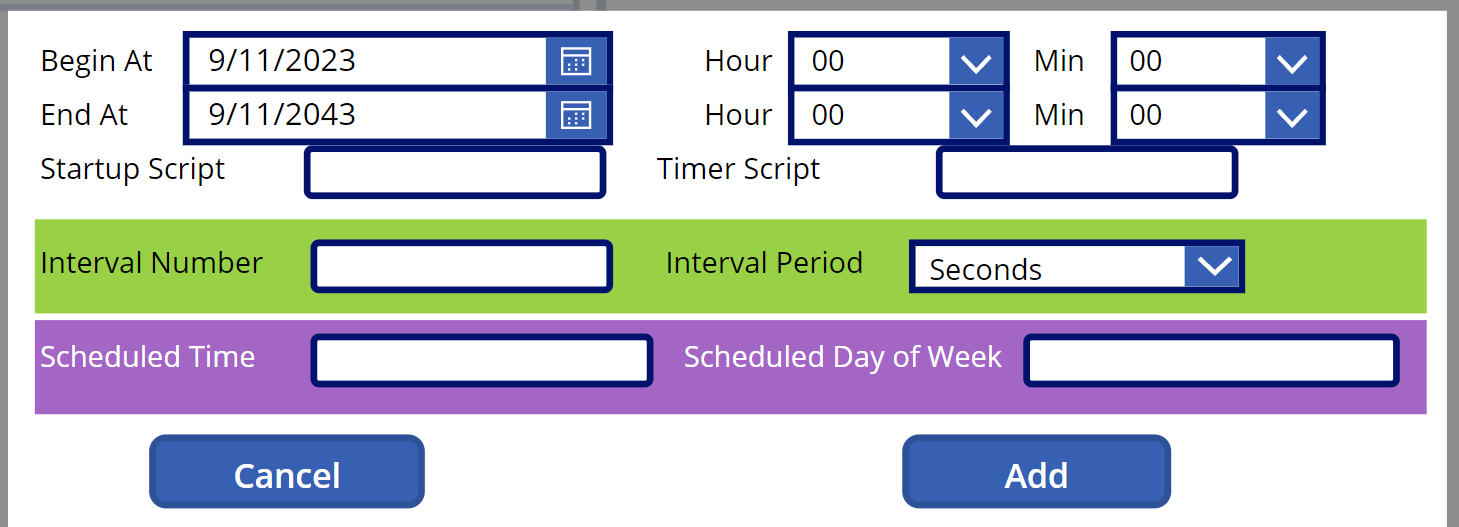
Begin At: Date and Time the interval schedule begins on.
End At: Date and Time the interval schedule is no longer in effect.
Startup Script: Optional script to execute on the first interval execution.
Timer Script: Script to be executed each time the interval elapses.
Interval Number: Numerical value specifying the interval length.
Interval Period: Unit of measure for the interval number.
Scheduled Time: Specific time of day the schedule should execute, entered in hh:mm:ss format.
Scheduled Day of Week: List of weekdays the event should be triggered.
Email Events
Email trigger events are used to trigger scripts when an email is received by a specified IMAP email account.
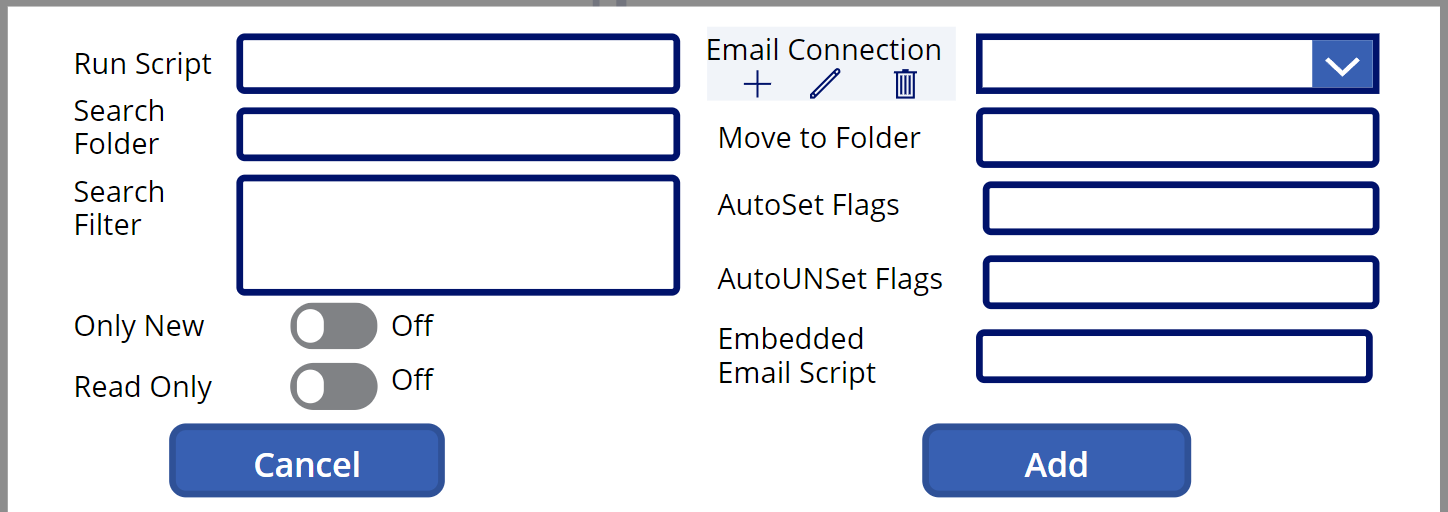
Run Script: Script to execute when an email is received by the target account.
Search Folder: Subfolder within the specified account’s inbox. Specify the subfolder using the following format: INBOX.subfolder.
Search Filter: JSON formatted filters used to specify email patterns to search for. Example: [{“Subject”:“Test”, “NotFlags”:1}].
Only New: Enable this option to search for only emails flagged as “new” (unread).
Read Only: .
Email Connection: Specify incoming email connection. As of the writing of this document, only IMAP is supported.
Setup/Modify Email Connection:
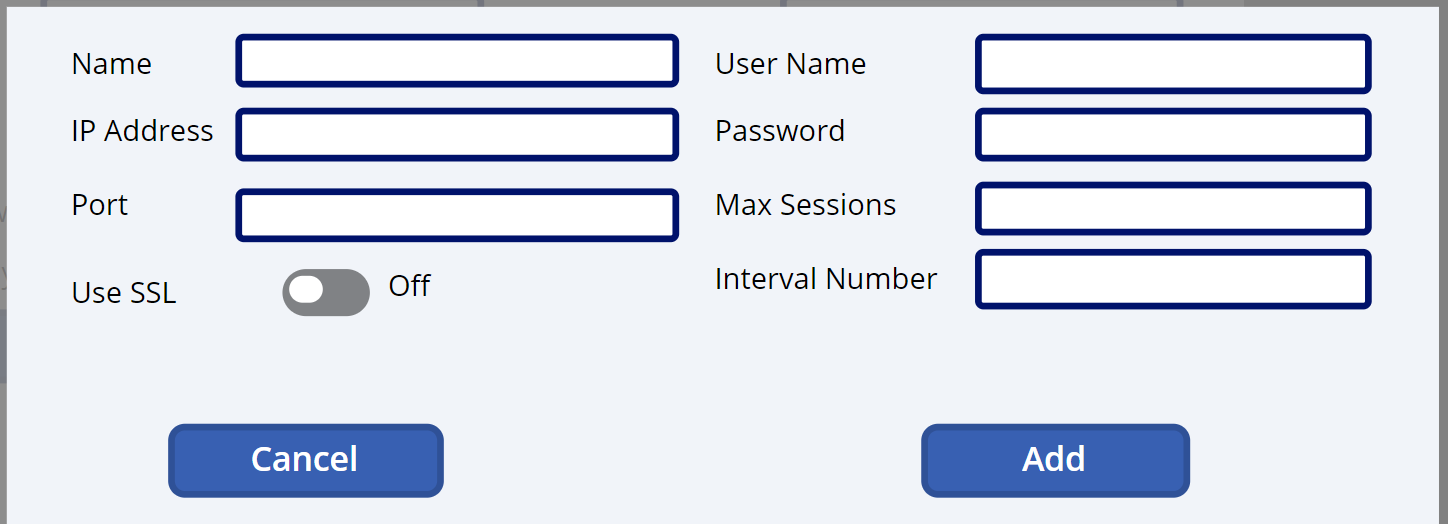
Name: Unique name for the connection.
IP Address: Address to an internal IMAP email server.
Port: Communications port on the IMAP server to listen and communicate over.
Use SSL: Enable this toggle to force SSL communication with the email server.
User Name: email username/account: jane.doe@company.com.
Password: Email account password.
Max Sessions: Maximum number of allowed active script session to be executed.
Inteval Number: Interval, in seconds, between inbox polls.
Move to Folder: Folder to move emails once they have been processed. This field uses the same formatting rules as the Search Folder: INBOX.subfolder.
Auto Set Flags: Automatically set specified flags when reading emails.
FLAGS (flag value: description)
0: No flags are set.
1: Message has been read.
2: Message has been answered (replied to).
4: Message is flagged as important.
8: Message is flagged for deletion.
10: Message is marked as a draft.
20: Message has recently arrived in the folder/inbox.
40: Folder allows user-defined flags.
Auto Unset Flags: Automatically unset specified flags when reading emails.
Embedded Email Script: Script to process emails embedded as attachments on the source email. The function/sub-routine named in this field will execute recursively for each attached email until it reaches the inner most email. You can use this function/sub-routine to pull data from emails attached to other emails.